Showing posts with label egg. Show all posts

Wednesday, 21 March 2018

Creating an Egg Shape in Paint Shop Pro

Although bird eggs do come in slightly different shapes, they do seem to follow a pattern of a slightly pointy end with a somewhat thicker base.

This is how I created a pleasing and regular egg shape.

Open a new image 600 X 600 with a vector background.
View >  grid , guides, and rulers ticked.


Make sure your grid values are 100 horizontal and 100 vertical.


Place Guides in the following positions:
Vertical at 175 and 425
Horizontal at 330


Select your ellipse tool.


Make sure you have selected ellipse not circle in the tool bar.


Foreground null, background color of your choice.
Draw an ellipse  from  x:175 y:100  to x:425 y:500


Select the pick [object selector] tool and zoom in and make any minor adjustments to make sure your ellipse is plum within the grid and vertical guides:


Object> convert to path:
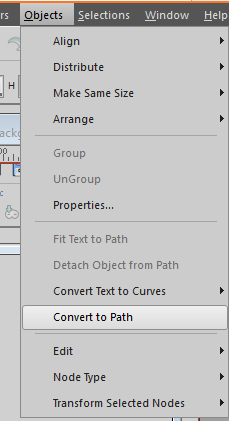


Select the Pen tool - your nodes will become  visible:


Zoom in and Click on each of the lateral nodes and holding down your left mouse button  pull each one straight down to your horizontal guide:


If you wish to have your egg a bit more "pointy", click on the node at the top and adjust the "arms" to make them shorter.


When you are happy with your shape, give your egg shape a name.


Select your egg with the pick tool [or object selector]
Right click and Export>Shape [Or File> Export > Shape]


I usually use the same name as I have given the shape as this makes it far easier to find it again when I want to use it.


If you wish to place it in a particular folder within your PSP shapes click on the little file icon to open the file location box [yes I have a LOT of folders:) ] :


To use your new shape simply select it from your dropdown list of PSP preset shapes:


I used the egg shape with a soft pink brown gradient and added shading and texture:


You can download a zip  with a .pdf version of this tutorial and gradient jm_brown_egg_1 HERE

You might also like to look at this tutorial, using an egg shape.

Please feel free to comment and post any queries.

Monday, 14 April 2014

A Pretty Easter Egg

This egg is one that you can make your own :)
My example is using a fairly small image about 400 X 600 pixels but the general principal can be followed for other sizes and values scaled up/down to suit.
Download My egg preset shape.HERE..Place this in your Preset Shapes folder.
Select a source image which you would like to use ..It can be a pattern, painting , photograph ..or whatever :)

I chose a pretty floral painting by Australian artist Ellis Rowan.


New Vector Layer and reduce opacity to 40%
Select Preset shape tool and locate your egg shape.


With foreground null and background white hold down the shift key to maintain your shape and draw it out over your background image, placing it as attractively as you can.
With the Object selector [Pick tool] make any fine adjustments.


Selections > Selections from Vector Object

Select your background layer and Selections> promote selection to layer .
Layers> Arrang and bring this layer to the top and remove or obscure background layer.


Keep selected.
Effects > Geometric Effects spherize and choose ellipse.
The strength that you use will depend on your image .
I used 80%


Adjust> Sharpening > Unsharp mask
My settings:

Now for some shaping:
Keep selected.
New raster layer Blend mode multiply
Effects > Cut out
I used a darker colour from my image and these settings.


New raster layer, blend mode dodge
Effects> cutout
I chose a light colour from my image and positive settings:


Now for a highlight:
New raster layer blend mode dodge
Select soft paint brush with opacity 30% and fill #c0c0c0


Apply to top area of your image:


Make any adjustments to the opacity of your cutout and highlight layers and deselect.
I added a little embossing to my image and boosted the saturation before merging my layers.

...and another example [vintage style]:


You can download a .pdf file of this tutorial HERE

Some Further Tips:
Don't be afraid to experiment with the opacity of your cut-out or highlight layers.
Lighter colours may require lower opacity.
Whilst still selected blur these layers if you think it is necessary.
With some images I found that using the softening brush around the outline of the egg in my merged image, gave better perspective

Judy